Blog
Reuse your e4 SWT-Part implementation in e4 on JavaFX
Have you ever considered to switch from SWT to JavaFX but had abandoned it because it would require you to rewrite all your SWT UI code or you want to stick with SWT because you want to publish your e4 application on the web using RAP but on the desktop SWT simply doesn't allow you to theme your UI enough? If you followed my advise to keep your ui-bundle free from framework dependencies beside:
- org.eclipse.swt
- org.eclipse.jface
- (optionally) org.eclipse.jface.databinding
this is now going to pay off. Let's create a little sample step by step
Setup your system
- Download Java8 from http://www.oracle.com/technetwork/java/javase/downloads/index.html
- Download the nightly-all-in-one build of e(fx)clipse from http://downloads.efxclipse.bestsolution.at/downloads/nightly/sdk/
- Make sure you launch your IDE with JDK8 - in Luna M6 there was a bug in Equinox so it is essential that the first start is done with JDK8
Native SWT application
Native SWT project creation
- Create an e4 application which only has the Application.e4xmi (no parts, ...) - I named mine
org.eclipse.fx.sample.singlesource.app.native - Create a bare-bone plug-in project which is empty (no activators, no plugin.xml) - I named mine
org.eclipse.fx.sample.singlesource.views - Add
org.eclipse.swt``org.eclipse.jfacewithout version constraints to your plugin
Your workspace should no look like this 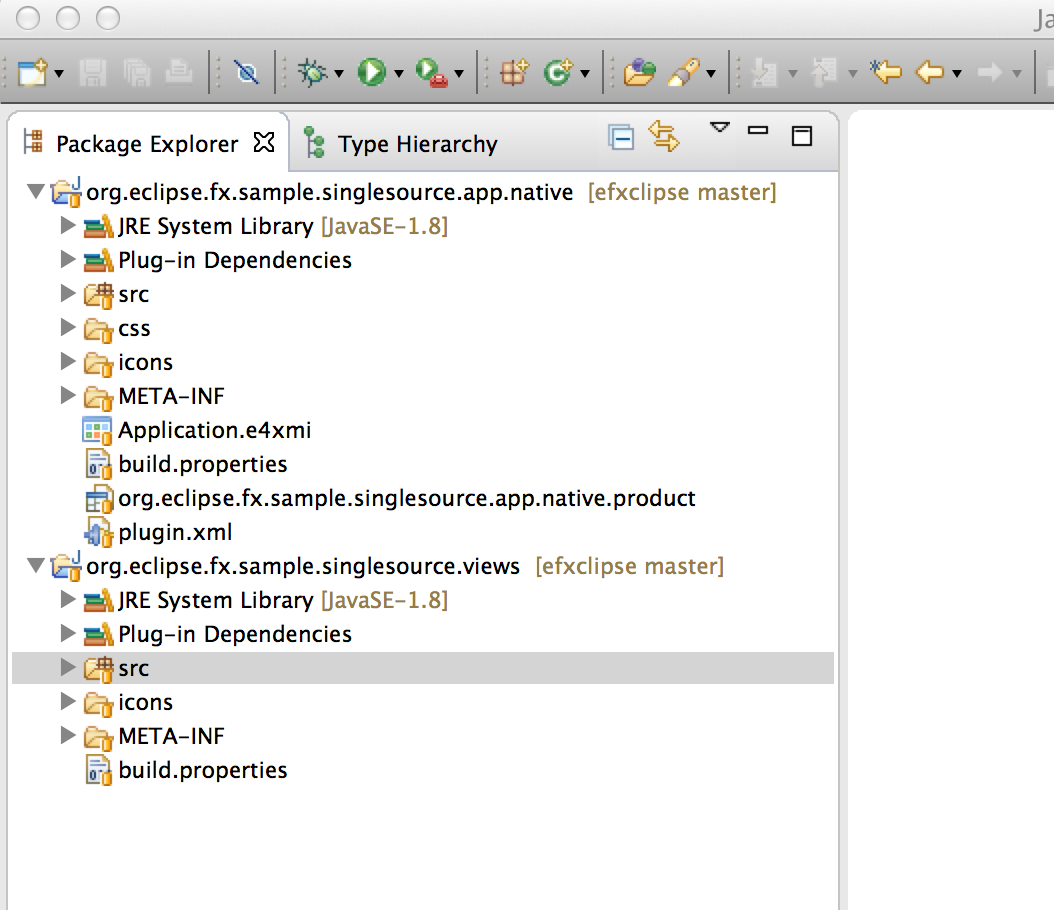
Implement a simple SWT UI
Create a package - I named mine
org.eclipse.fx.sample.singlesource.viewsCreate a Java class in the above package - i named mine
SWTHelloWorldImplement a simple UI - mine looks like this:
package org.eclipse.fx.sample.singlesource.views;

import javax.annotation.PostConstruct;

import org.eclipse.swt.SWT;
import org.eclipse.swt.graphics.Font;
import org.eclipse.swt.graphics.FontData;
import org.eclipse.swt.layout.GridData;
import org.eclipse.swt.layout.GridLayout;
import org.eclipse.swt.widgets.Button;
import org.eclipse.swt.widgets.Composite;
import org.eclipse.swt.widgets.Display;
import org.eclipse.swt.widgets.Event;
import org.eclipse.swt.widgets.Label;

public class SWTHelloWorld {

	private Label l;

	@PostConstruct
	public void initUI(Composite parent) {
		parent.setLayout(new GridLayout());

		l = new Label(parent, SWT.NONE);
		l.setAlignment(SWT.CENTER);
		l.setFont(new Font(Display.getCurrent(), new FontData(l.getFont().getFontData()[0].getName(), 30, SWT.NORMAL)));
		l.setLayoutData(new GridData(GridData.FILL,GridData.CENTER,true,false));

		Button b = new Button(parent, SWT.PUSH);
		b.setText("Hello World");
		b.addListener(SWT.Selection, this::showHelloWorld);
		b.setLayoutData(new GridData(GridData.CENTER,GridData.CENTER,true,true));
	}

	void showHelloWorld(Event event) {
		l.setText("SWT on JavaFX is the coolest technology on earth");
	}
}
Implement a simple JFace viewer
Create a Java class next to the SWT-UI one - I named mine
JFaceHelloWorldCreate a icons-folder in the root of the project
Download the famfamfam icon from http://www.famfamfam.com/lab/icons/silk/
Copy the following icons to it:
- folder.png
- page_white_acrobat.png
- page_white_cup.png
- page_white_excel.png
- page_white_office.png
- page_white_picture.png
- page_white_text.png
- page_white.png
The implementation i wrote to test JFace looks like this:
package org.eclipse.fx.sample.singlesource.views;

import java.io.File;

import javax.annotation.PostConstruct;

import org.eclipse.jface.resource.ImageDescriptor;
import org.eclipse.jface.resource.JFaceResources;
import org.eclipse.jface.viewers.ITreeContentProvider;
import org.eclipse.jface.viewers.LabelProvider;
import org.eclipse.jface.viewers.TreeViewer;
import org.eclipse.jface.viewers.Viewer;
import org.eclipse.swt.graphics.Image;
import org.eclipse.swt.layout.FillLayout;
import org.eclipse.swt.widgets.Composite;

public class JFaceHelloWorld {
	private static final String FOLDER = "FOLDER";
	private static final String JAVA_FILE = "JAVA_FILE";
	private static final String PDF_FILE = "PDF_FILE";
	private static final String EXCEL_FILE = "EXCEL_FILE";
	private static final String OFFICE_FILE = "OFFICE_FILE";
	private static final String IMG_FILE = "IMG_FILE";
	private static final String TEXT_FILE = "TEXT_FILE";
	private static final String GENERIC_FILE = "GENERIC_FILE";

	static {
		JFaceResources.getImageRegistry().put(FOLDER, ImageDescriptor.createFromURL(JFaceHelloWorld.class.getClassLoader().getResource("/icons/folder.png")));
		JFaceResources.getImageRegistry().put(JAVA_FILE, ImageDescriptor.createFromURL(JFaceHelloWorld.class.getClassLoader().getResource("/icons/page_white_cup.png")));
		JFaceResources.getImageRegistry().put(PDF_FILE, ImageDescriptor.createFromURL(JFaceHelloWorld.class.getClassLoader().getResource("/icons/page_white_acrobat.png")));
		JFaceResources.getImageRegistry().put(EXCEL_FILE, ImageDescriptor.createFromURL(JFaceHelloWorld.class.getClassLoader().getResource("/icons/page_white_excel.png")));
		JFaceResources.getImageRegistry().put(OFFICE_FILE, ImageDescriptor.createFromURL(JFaceHelloWorld.class.getClassLoader().getResource("/icons/page_white_office.png")));
		JFaceResources.getImageRegistry().put(IMG_FILE, ImageDescriptor.createFromURL(JFaceHelloWorld.class.getClassLoader().getResource("/icons/page_white_picture.png")));
		JFaceResources.getImageRegistry().put(TEXT_FILE, ImageDescriptor.createFromURL(JFaceHelloWorld.class.getClassLoader().getResource("/icons/page_white_text.png")));
		JFaceResources.getImageRegistry().put(GENERIC_FILE, ImageDescriptor.createFromURL(JFaceHelloWorld.class.getClassLoader().getResource("/icons/page_white.png")));
	}

	@PostConstruct
	public void initUI(Composite parent) {
		parent.setLayout(new FillLayout());

		File root = new File(System.getProperty("user.home"));

		TreeViewer viewer = new TreeViewer(parent);
		viewer.setContentProvider(new FileSystemContentProvider());
		viewer.setLabelProvider(new LabelProvider() {
			@Override
			public Image getImage(Object element) {
				File f = (File) element;
				if( f.isDirectory() ) {
					return JFaceResources.getImageRegistry().get(FOLDER);
				} else if( f.getName().endsWith(".java") ) {
					return JFaceResources.getImageRegistry().get(JAVA_FILE);
				} else if( f.getName().endsWith(".pdf") ) {
					return JFaceResources.getImageRegistry().get(PDF_FILE);
				} else if( f.getName().endsWith(".xls") ) {
					return JFaceResources.getImageRegistry().get(EXCEL_FILE);
				} else if( f.getName().endsWith(".doc") ) {
					return JFaceResources.getImageRegistry().get(OFFICE_FILE);
				} else if( f.getName().endsWith(".png") || f.getName().endsWith(".jpg") || f.getName().endsWith(".gif") ) {
					return JFaceResources.getImageRegistry().get(IMG_FILE);
				} else {
					return JFaceResources.getImageRegistry().get(GENERIC_FILE);
				}
			}

			@Override
			public String getText(Object element) {
				File f = (File) element;
				if( f == root ) {
					return f.getAbsolutePath();
				}
				return f.getName();
			}
		});
		viewer.setInput(new File[] {root});
	}

	static class FileSystemContentProvider implements ITreeContentProvider {

		@Override
		public void dispose() {

		}

		@Override
		public void inputChanged(Viewer viewer, Object oldInput, Object newInput) {

		}

		@Override
		public Object[] getElements(Object inputElement) {
			return (Object[]) inputElement;
		}

		@Override
		public Object[] getChildren(Object parentElement) {
			File f = (File) parentElement;
			if( f.isDirectory() ) {
				return f.listFiles();
			}
			return new Object[0];
		}

		@Override
		public Object getParent(Object element) {
			File f = (File) element;
			return f.getParentFile();
		}

		@Override
		public boolean hasChildren(Object element) {
			return getChildren(element).length > 0;
		}

	}
}
Register the parts in your e4xmi & launch
- Add your
org.eclipse.fx.sample.singlesource.viewsto the apps.native MANIFEST.MF - Add your
org.eclipse.fx.sample.singlesource.viewsto the .product-File - Create a PartStack & 2 Part elements point to the class above
- Launch the application using the product-File
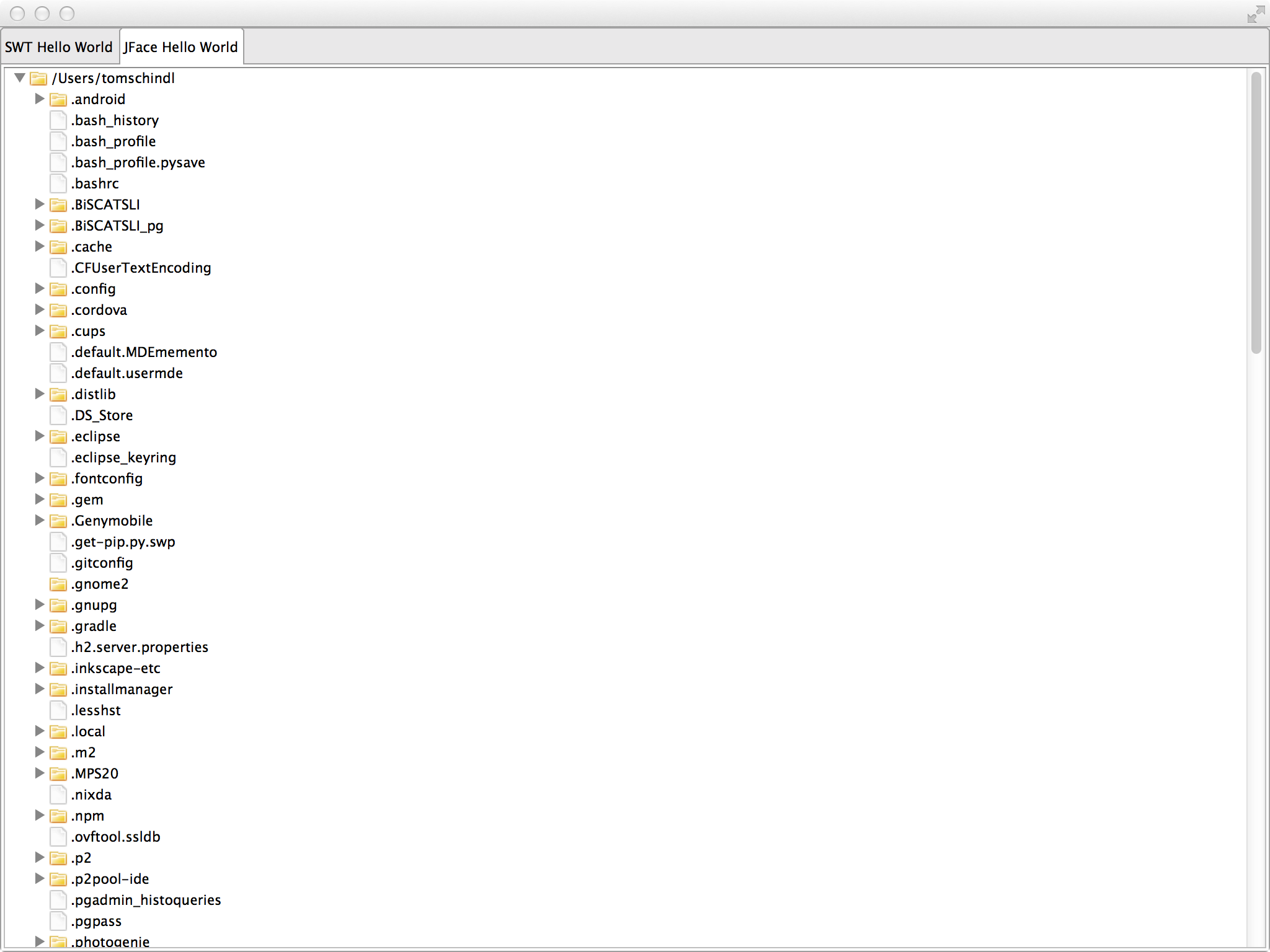
You should get an UI like this: 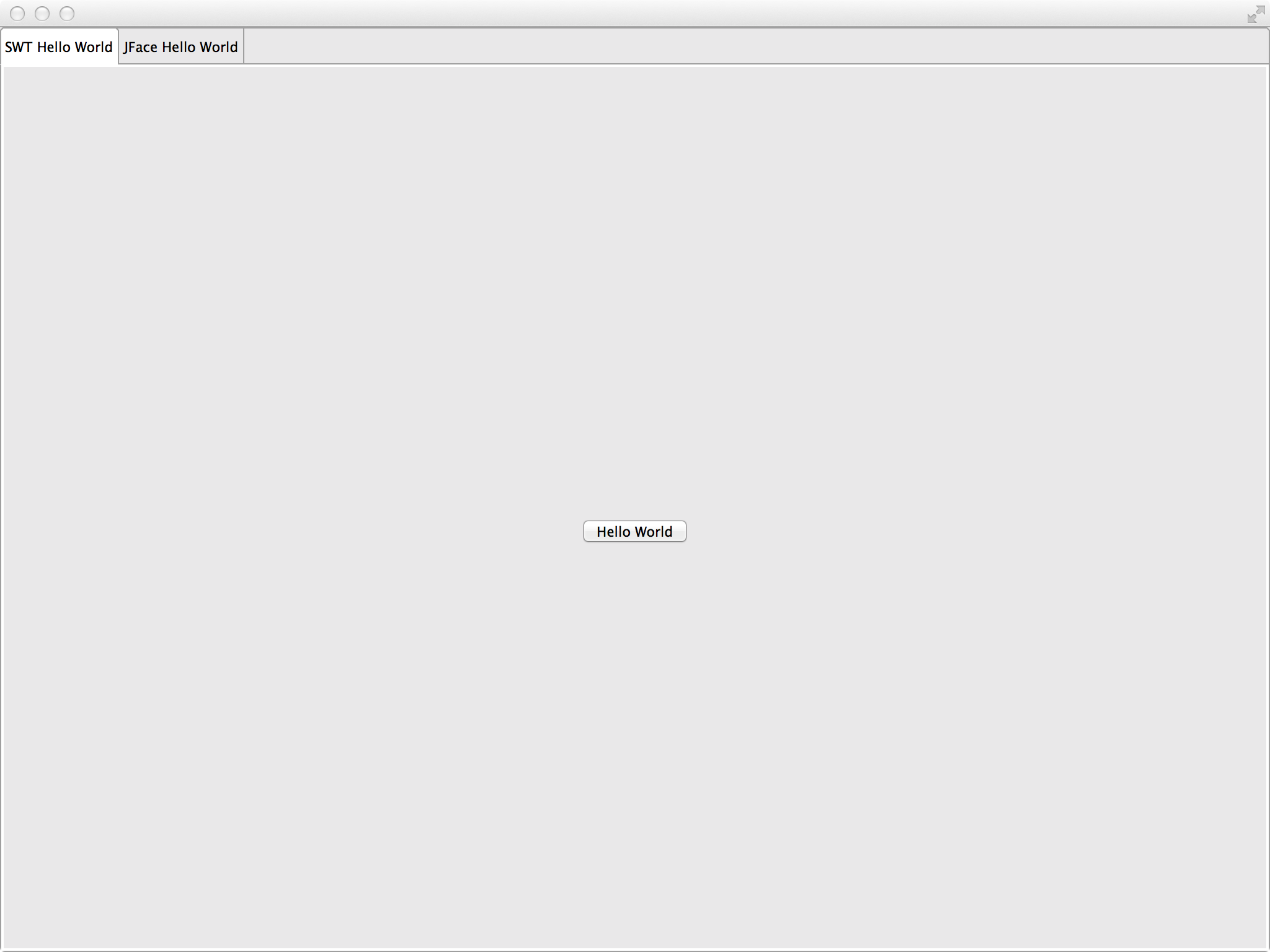
Run on e4 on JavaFX and SWT on JavaFX
Setup a target platform
- Close the
org.eclipse.fx.sample.singlesource.app.native - Create a new empty target platform - i named mine
efx - Add a software site which points to download.eclipse.org and inside the FX Target section you check
Target Platform featureand uncheckInclude required software - Add a software site which points to download.eclipse.org check the root-node named
SWT on JavaFXand uncheckInclude required software - Enable the new target platform
Create an e4 on JavaFX application infrastructure
- Create new project infrastructure using the
e4 Application projectsfound in the JavaFX/OSGi category - use
org.eclipse.fx.sample.singlesourceas the prefix - Finish the dialog with the default settings
You should have a workspace like this 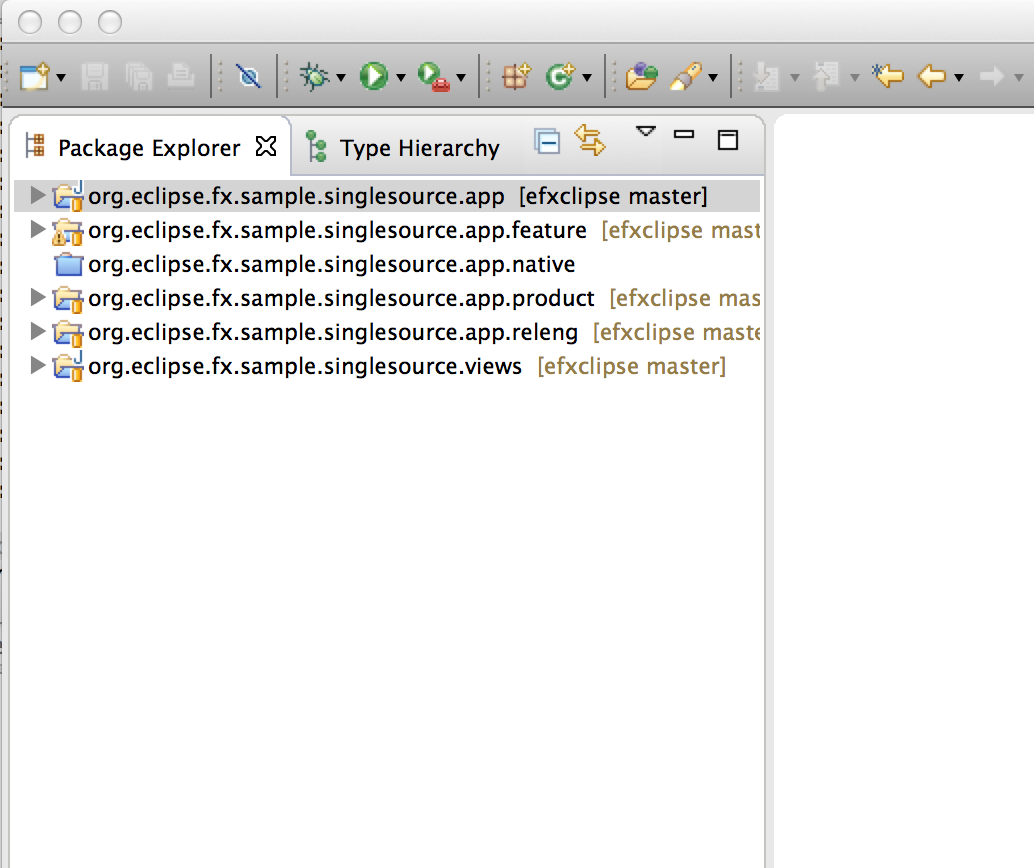
Add SWT on JavaFX dependencies
- Open the feature.xml in
org.eclipse.fx.sample.singlesource.app.feature - Add the following bundles
- org.eclipse.fx.runtime.swt
- org.eclipse.swt
- org.eclipse.fx.sample.singlesource.views
- org.eclipse.fx.runtime.swt.e4
Update the e4xmi & Launch
- Add a dependency to
org.eclipse.fx.sample.singlesource.viewsto the MANIFEST.MF - Open the e4xmi and add a PartStack and 2 Part elements pointing to the Java classes we defined
- Launch the application using the generated Launch Config in the
.productproject
This will give you a UI like this 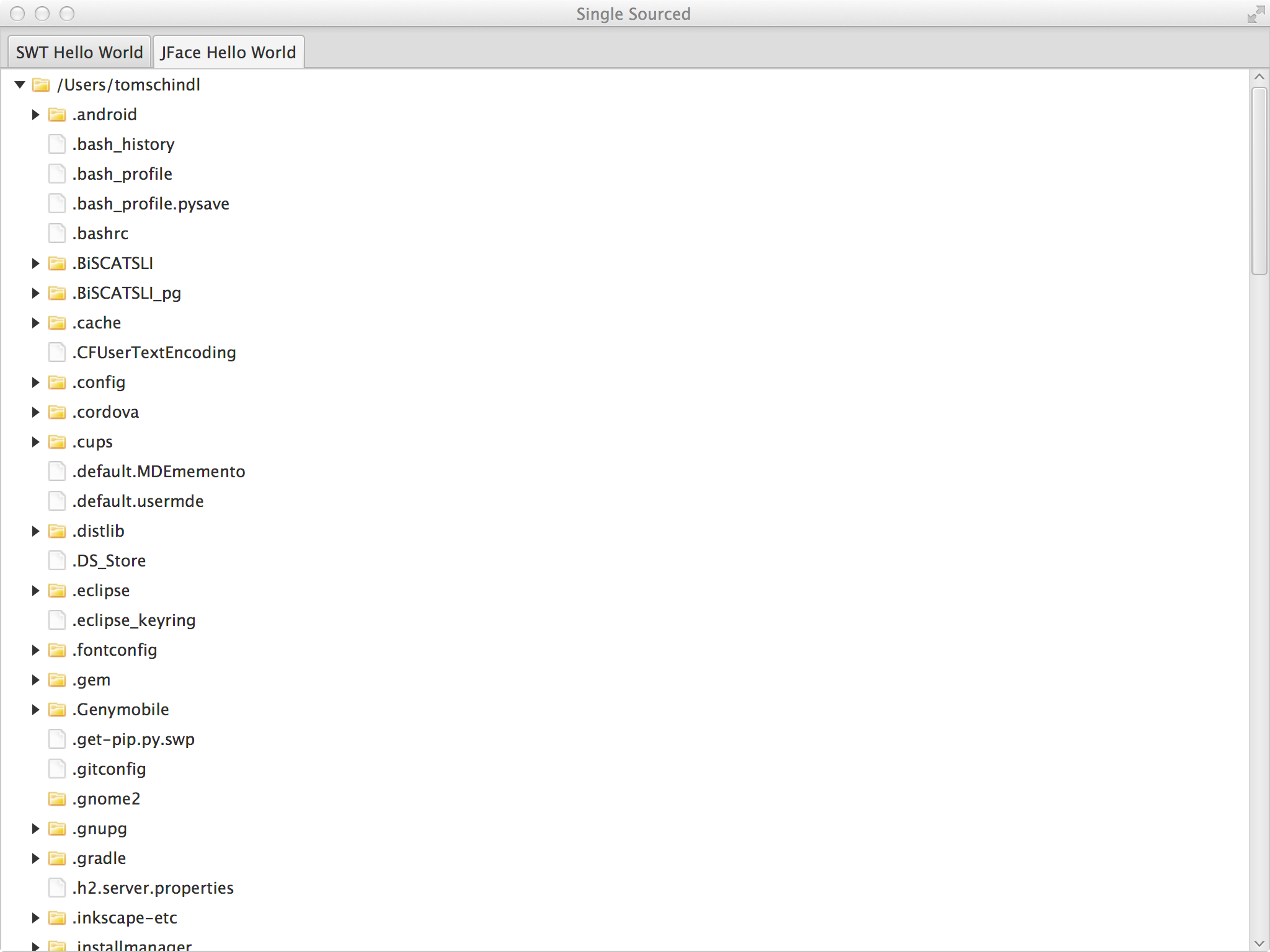
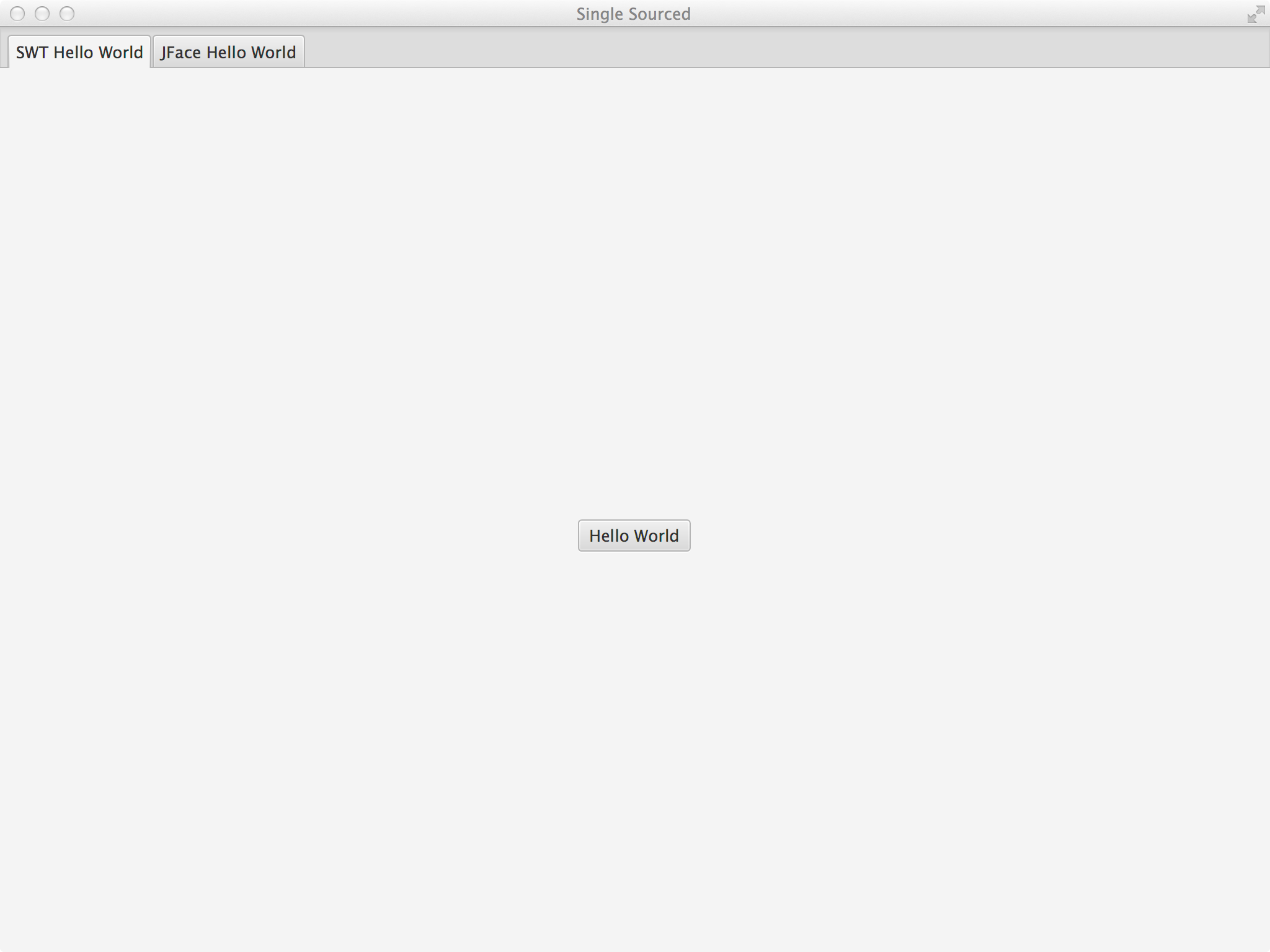 or if you open the default.css in the .app-project and add the following lines
.root {
    -fx-base: rgb(50, 50, 50);
    -fx-background: rgb(50, 50, 50);
    -fx-control-inner-background:  rgb(50, 50, 50);
}
the ui will change to 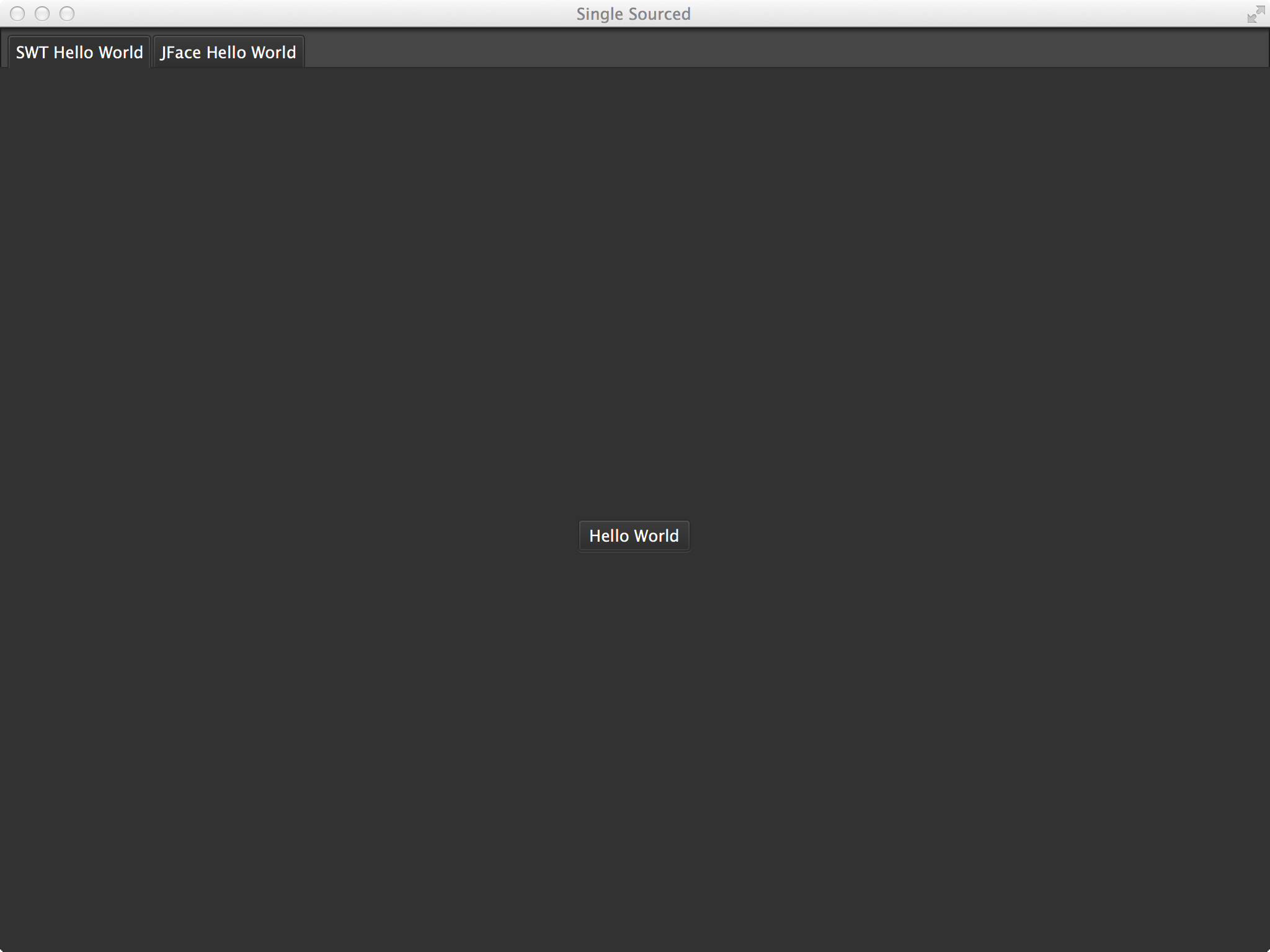
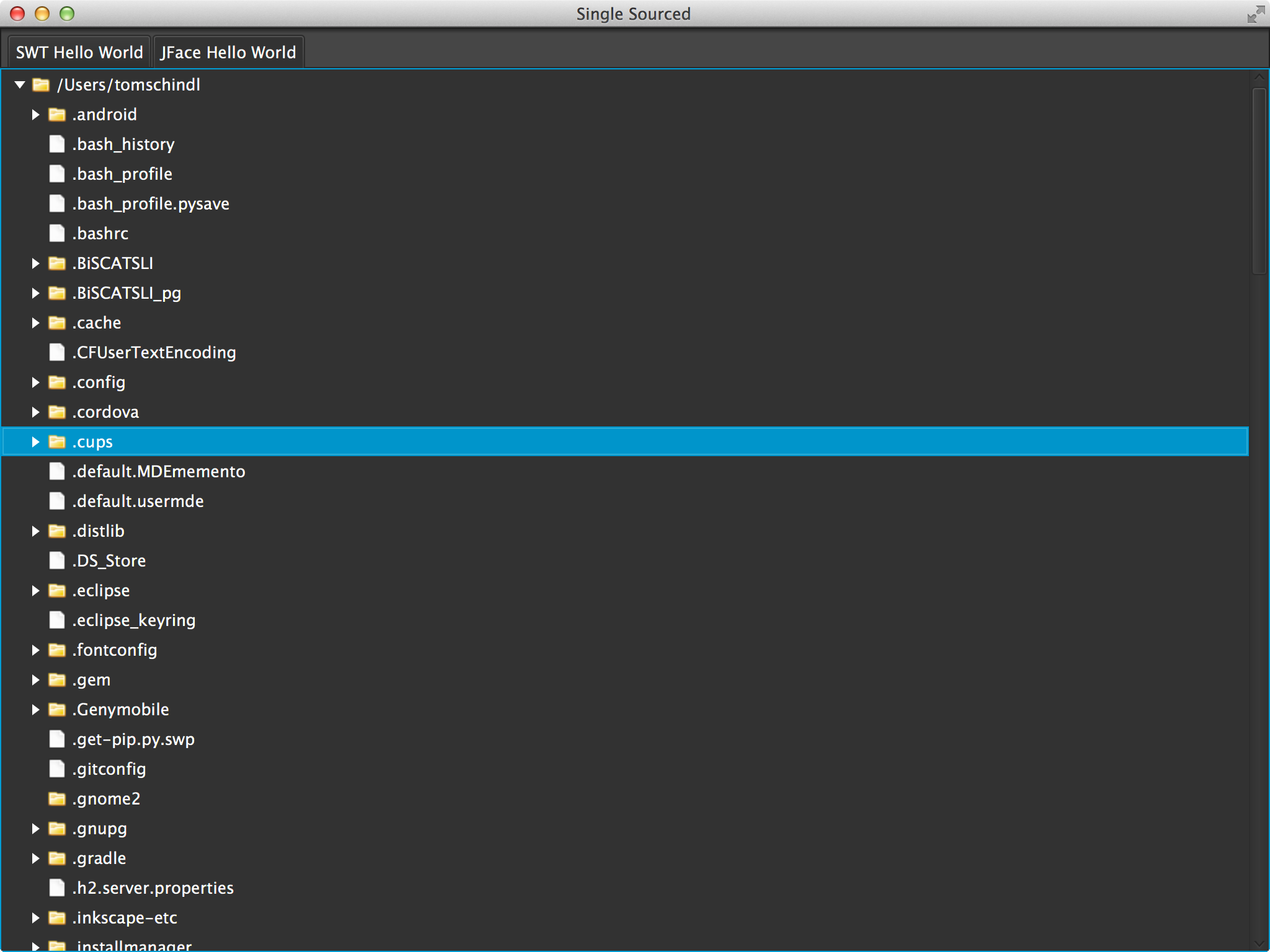 You notice that you can exploit the full power of JavaFX CSS immediately! Finally a video showing the above in full action Watch on YouTube